Follow every layer of the forest: tree layers in Arboreal Forest
Johan Ekenstedt
20 Oct 2026
In a continuous cover stand it is the layers that tell you how the forest is doing, and an average for the whole stand is not enough. That is why you can now split the trees into understorey, midstorey and overstorey in Arboreal Forest. The summary then shows each layer on its own.
Why the layers matter
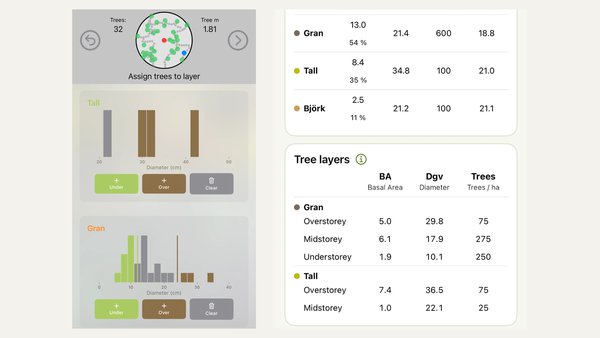
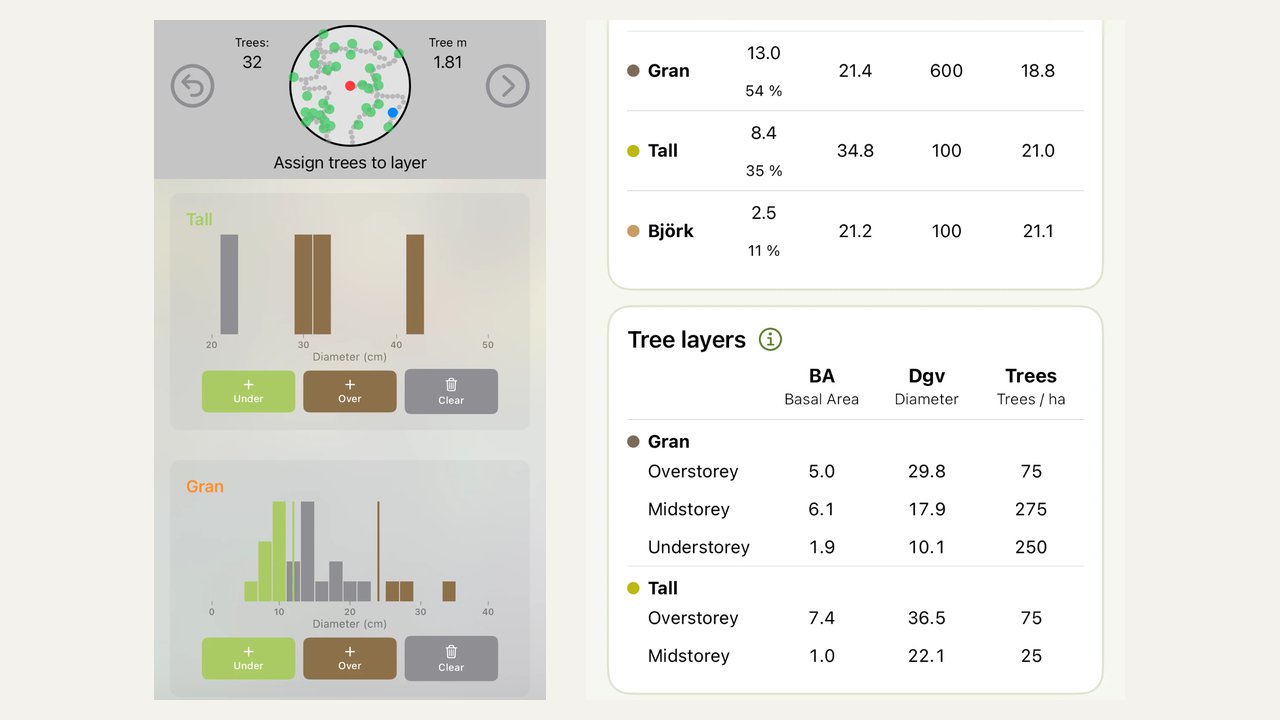
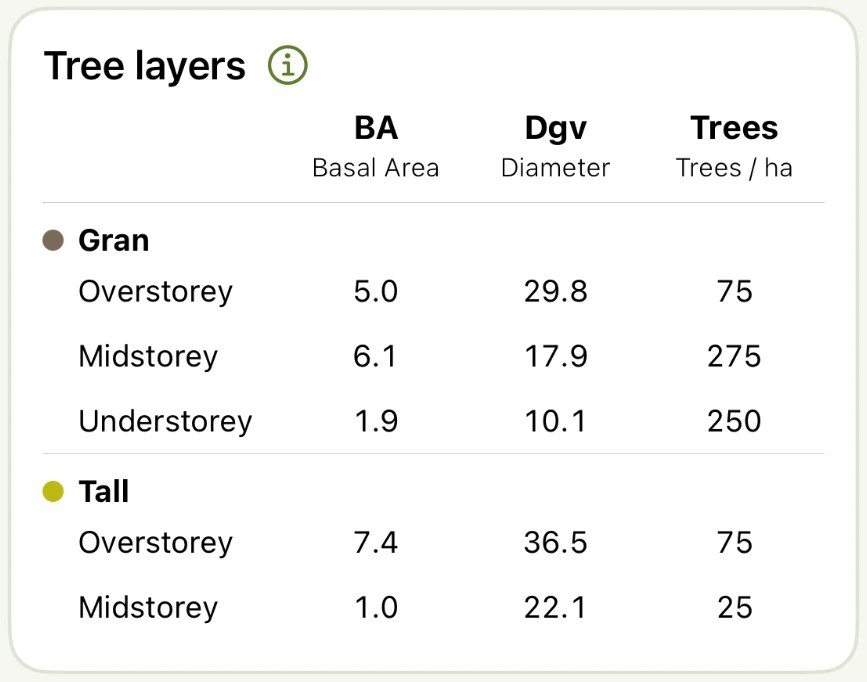
In continuous cover forestry (CCF) the goal is a stand with trees of different sizes that stay and grow into each other's place. An average for the whole stand says very little about that. On the plot in the pictures below, the spruce (Gran in the screenshots) has a basal-area-weighted mean diameter (Dgv) of 21 centimetres, which could look like a fairly even stand. Split into layers, the spruce looks completely different: 75 large spruces per hectare at 30 centimetres in the overstorey, 275 at 18 centimetres in the midstorey and 250 at 10 centimetres in the understorey.
When you see the layers one by one, you see what matters for management:
- Is there an understorey that can take over when the large trees are harvested?
- How much of the basal area stands in the overstorey?
- Is the midstorey missing, leaving a gap in the stand further ahead?
If you measure the same stand again after a few years, or after a selective felling, you see how the layers develop. It is a concrete way to follow that the forest is heading where you want it to. It also gives you something to show an adviser, a certifier or a buyer.
How it works
-
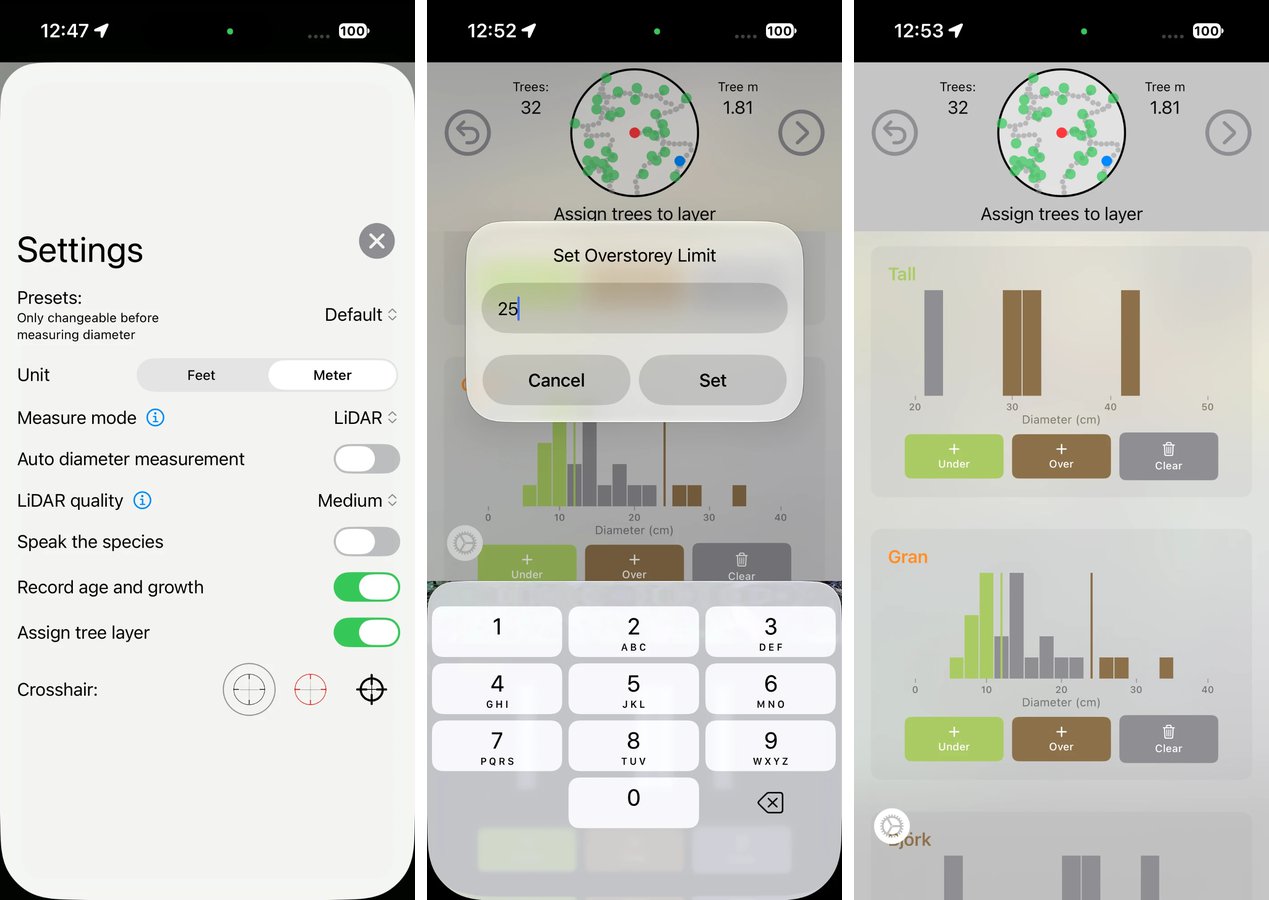
Turn on Assign tree layer. Open the settings in the measuring view and turn on Assign tree layer. You only do this once. The setting then stays on until you turn it off.
-
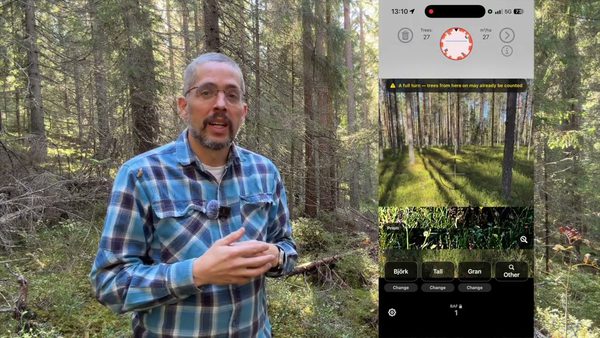
Measure the plot as usual. Measure the diameter and species of every tree, just as you normally do.
-
The layer view opens by itself. When the diameters are done, the layer view opens automatically. Each species on the plot gets its own chart of the diameters, so you can see how the trees are distributed.
-
Set the limits in centimetres. For each species you set one or two limits:
- Under: trees with a diameter up to the limit go into the understorey.
- Over: trees from the limit and up go into the overstorey.
- The trees in between become midstorey.
If you set only one limit, the species is split into two layers. The chart is coloured by layer straight away, so you can see where the limits fall. If the split looks wrong, change the limits or clear them and start again. The limits are set per species, so spruce and pine can be split at different diameters depending on how the stand actually looks.
-
Repeat on every plot. The layer view opens again each time the diameters on a plot are done.
What you see in the summary
The summary has a Tree layers card. It lists each species split into its layers, with three values:
- Basal area in m² per hectare
- Diameter, as basal-area-weighted mean diameter (Dgv)
- Number of trees per hectare
If you select several plots they are combined, and you see the layers for the whole stand.
The basal area and tree count of the layers add up exactly to the species figures in the table above. Species without layer limits are not shown in the Tree layers card, but remain in the table above.
Good to know
- The layers are set by diameter. Diameter is a simple measure that is easy to repeat, which makes it easy to follow the same stand between inventories.
- Height and volume are shown per species, not per layer. Height is calculated per species as Lorey's mean height, which is weighted towards the large trees. If we calculated volume per layer with the species height, the understorey would get a volume that looks reasonable but is too large. So we only show the values that can be calculated correctly per layer.
- It is your choice. With Assign tree layer turned off you measure exactly as usual, and the summary looks the way it always has.
Try it on your next plot
Tree layers are available in Arboreal Forest from version 4.61. Turn on Assign tree layer, measure your next plot as usual and see how the stand is built up, layer by layer.
Written by

Johan Ekenstedt
CEO and iOS developer at Arboreal. Making it easier to measure, understand and manage trees and forests.
LinkedIn